Using FishXCode with Claude Code
New here? Complete Account Setup first.
1. Environment Setup
Install Node.js
Claude Code is installed via npm. Confirm Node.js is available first.
node -v
npm -vbrew install nodenode -v
npm -vIf not installed, download from nodejs.org/zh-cn/download for your platform. Windows requires a restart after installation.
Windows Only: Install Git Bash
Claude Code requires a bash environment. Windows users must install Git Bash:
- Download from git-scm.com/install/windows and install the appropriate version.
- Verify: right-click the desktop — if Open Git Bash here appears, installation succeeded.
2. Install Claude Code
npm install -g @anthropic-ai/claude-codepnpm install -g @anthropic-ai/claude-codeyarn global add @anthropic-ai/claude-codeVerify installation:
claude --version3. Configure FishXCode
Option 1: settings.json (Recommended)
Edit ~/.claude/settings.json (Windows: C:\Users\<username>\.claude\settings.json) with the following content:
{
  "env": {
    "ANTHROPIC_AUTH_TOKEN": "replace with your API Key",
    "ANTHROPIC_BASE_URL": "https://fishxcode.com/",
    "CLAUDE_CODE_ATTRIBUTION_HEADER": "0",
    "CLAUDE_CODE_DISABLE_NONESSENTIAL_TRAFFIC": 1
  },
  "permissions": {
    "allow": [
      "Bash",
      "LS(*)",
      "Read(*)",
      "Write(*)",
      "Edit(*)",
      "MultiEdit(*)",
      "Glob(*)",
      "Grep(*)",
      "Task(*)",
      "WebFetch(domain:*)",
      "WebSearch",
      "TodoWrite(*)",
      "NotebookRead(*)",
      "NotebookEdit(*)"
    ],
    "defaultMode": "bypassPermissions",
    "deny": []
  },
}
This configuration persists permanently — no need to set environment variables each session.
Option 2: Temporary Environment Variables
export ANTHROPIC_BASE_URL=https://fishxcode.com/
export ANTHROPIC_AUTH_TOKEN=sk-xxx$env:ANTHROPIC_BASE_URL="https://fishxcode.com/"
$env:ANTHROPIC_AUTH_TOKEN="sk-xxx"set ANTHROPIC_BASE_URL=https://fishxcode.com/
set ANTHROPIC_AUTH_TOKEN=sk-xxxTo write permanently to Windows system variables, run in PowerShell:
setx ANTHROPIC_AUTH_TOKEN "sk-xxx"
setx ANTHROPIC_BASE_URL "https://fishxcode.com/"
Reopen the terminal after running these commands for the changes to take effect.
WARNING
Replace sk-xxx with your actual Token from the FishXCode Console.
4. Launch
cd my-project
claude
5. Model Selection
Type /model inside Claude Code to switch models:
| Option | Model | Notes |
|---|---|---|
| Default | claude-sonnet-4-5-20250929 + claude-haiku-4-5-20251001 | Auto-selected by task complexity. Recommended for daily use. |
| Opus | claude-opus-4-5-20251101 | Strongest reasoning, higher cost |
| Haiku | claude-haiku-4-5-20251001 | Lightweight and fast |
You can also pin a model via environment variable:
export ANTHROPIC_MODEL=claude-sonnet-4-5-20250929
claude$env:ANTHROPIC_MODEL="claude-sonnet-4-5-20250929"
claudeUpgrade Claude Code
If the model version appears outdated, run the upgrade command and restart your tools:
npm install -g @anthropic-ai/claude-code6. IDE Integration
IntelliJ IDEA
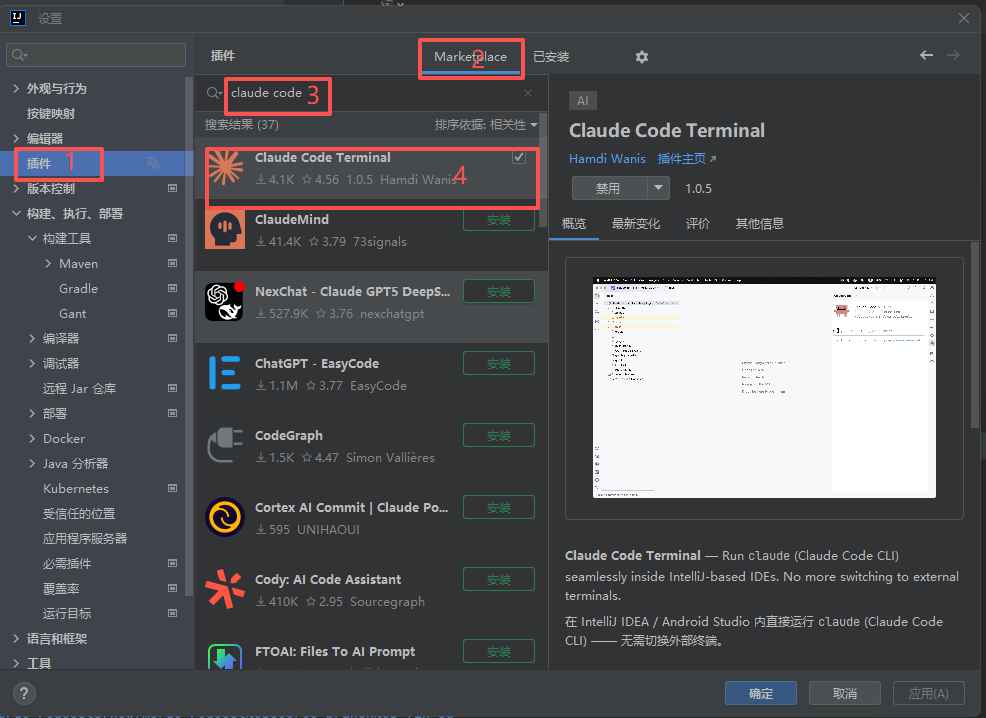
Navigate to: File → Settings → Plugins → Marketplace → search claude code, find Claude Code Terminal and install:
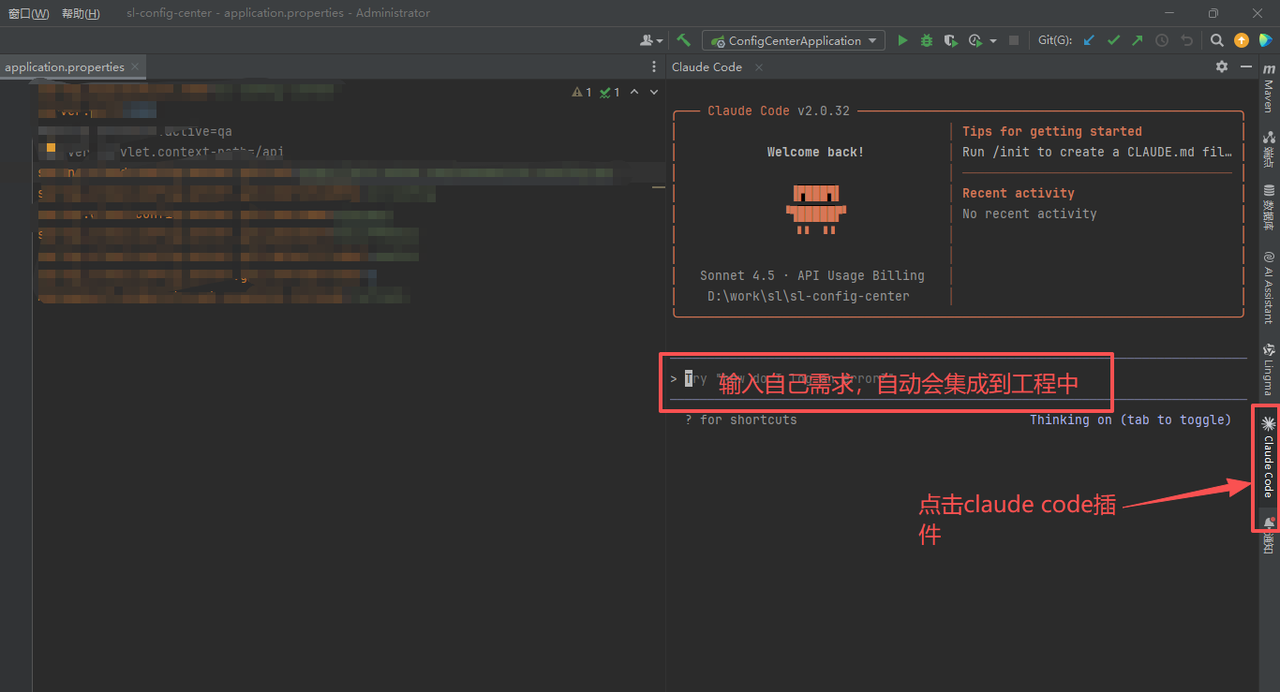
After installation, restart IDEA and verify the plugin has loaded:
INFO
If the plugin does not appear in the Marketplace, your current IDEA version is too old — upgrade to the latest release.
VSCode
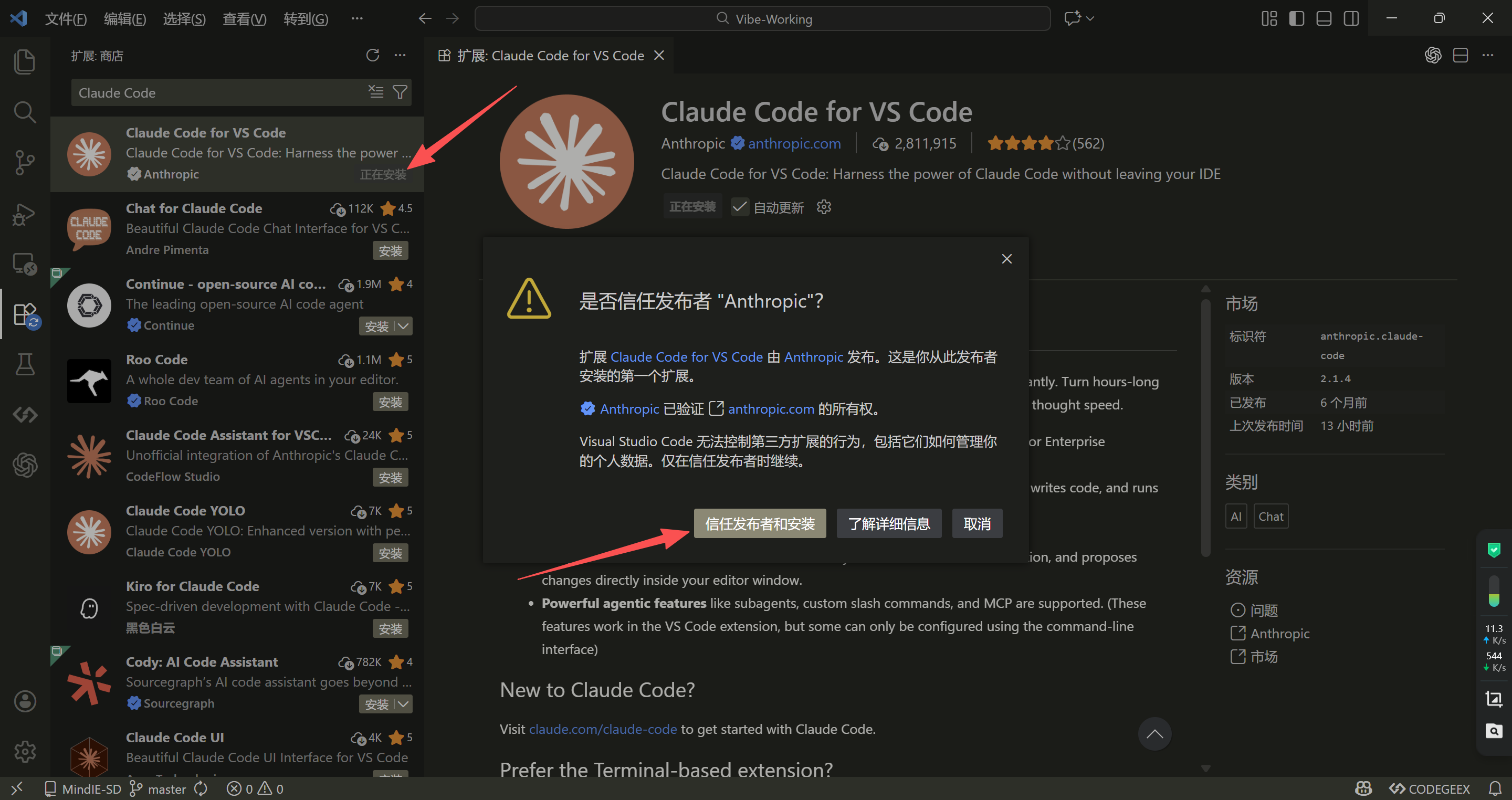
Press Ctrl + Shift + X to open the Extensions panel, search claude code, and install Claude Code for VSCode.
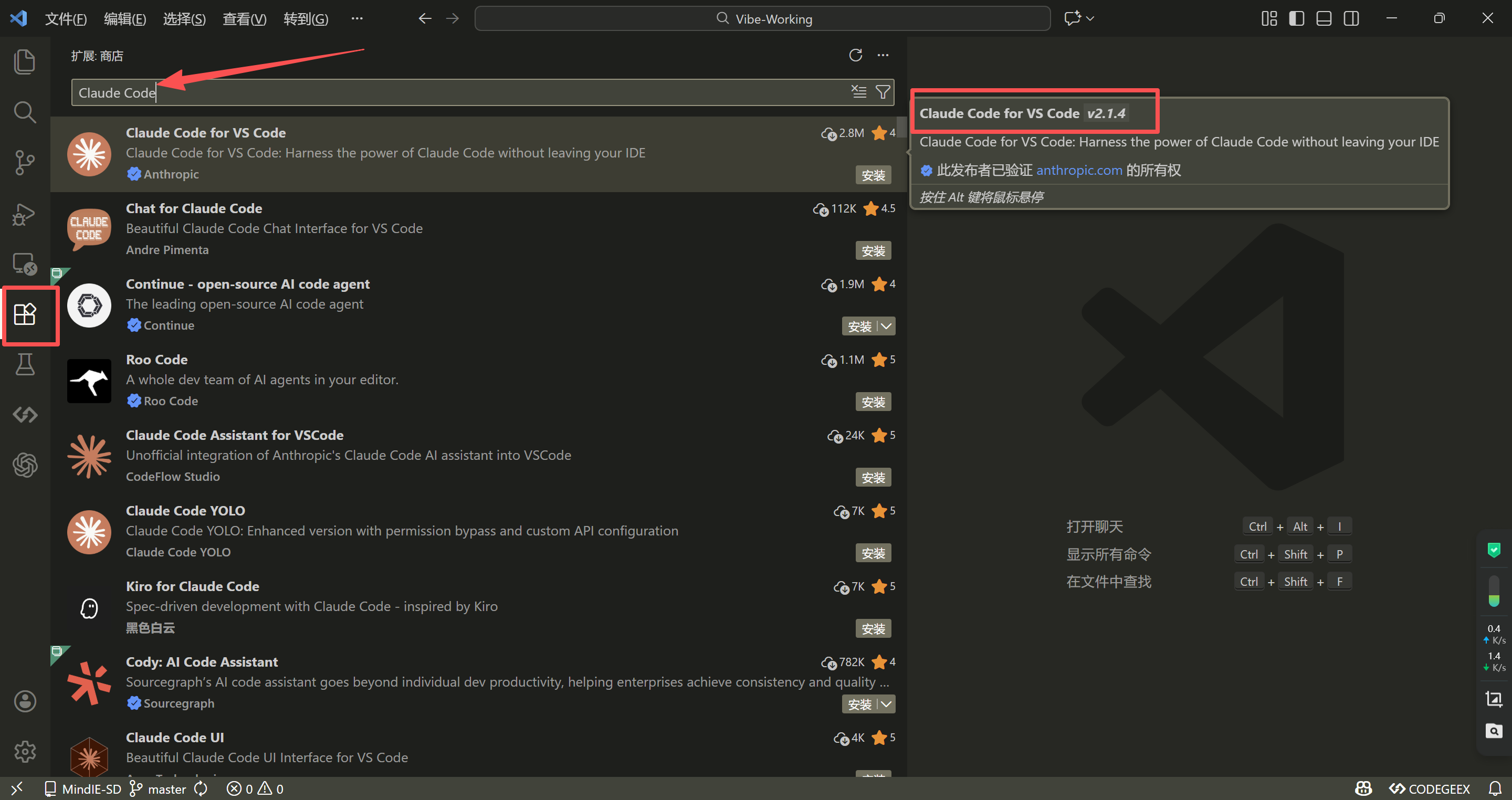
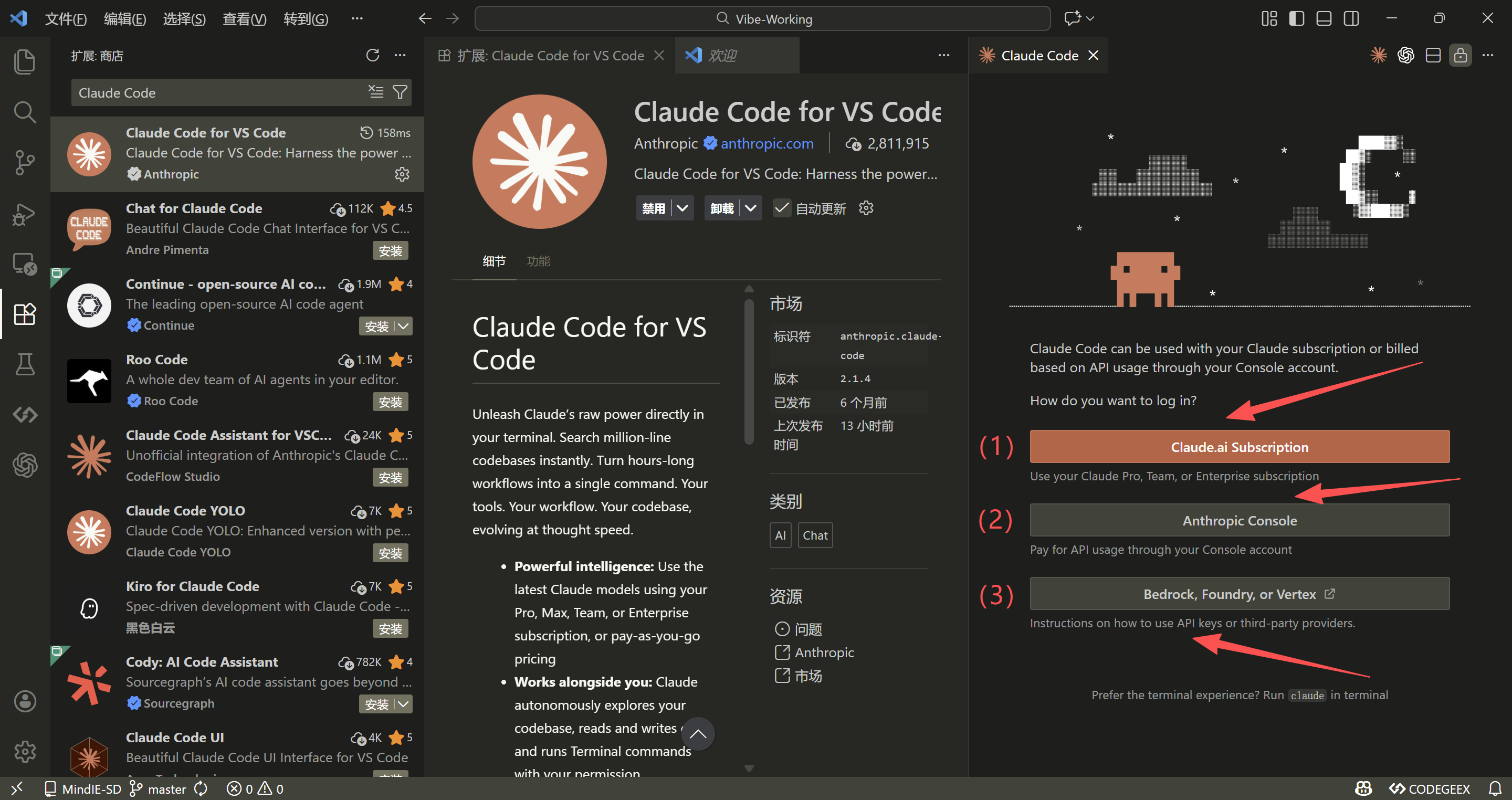
After installation, the extension offers three connection methods:
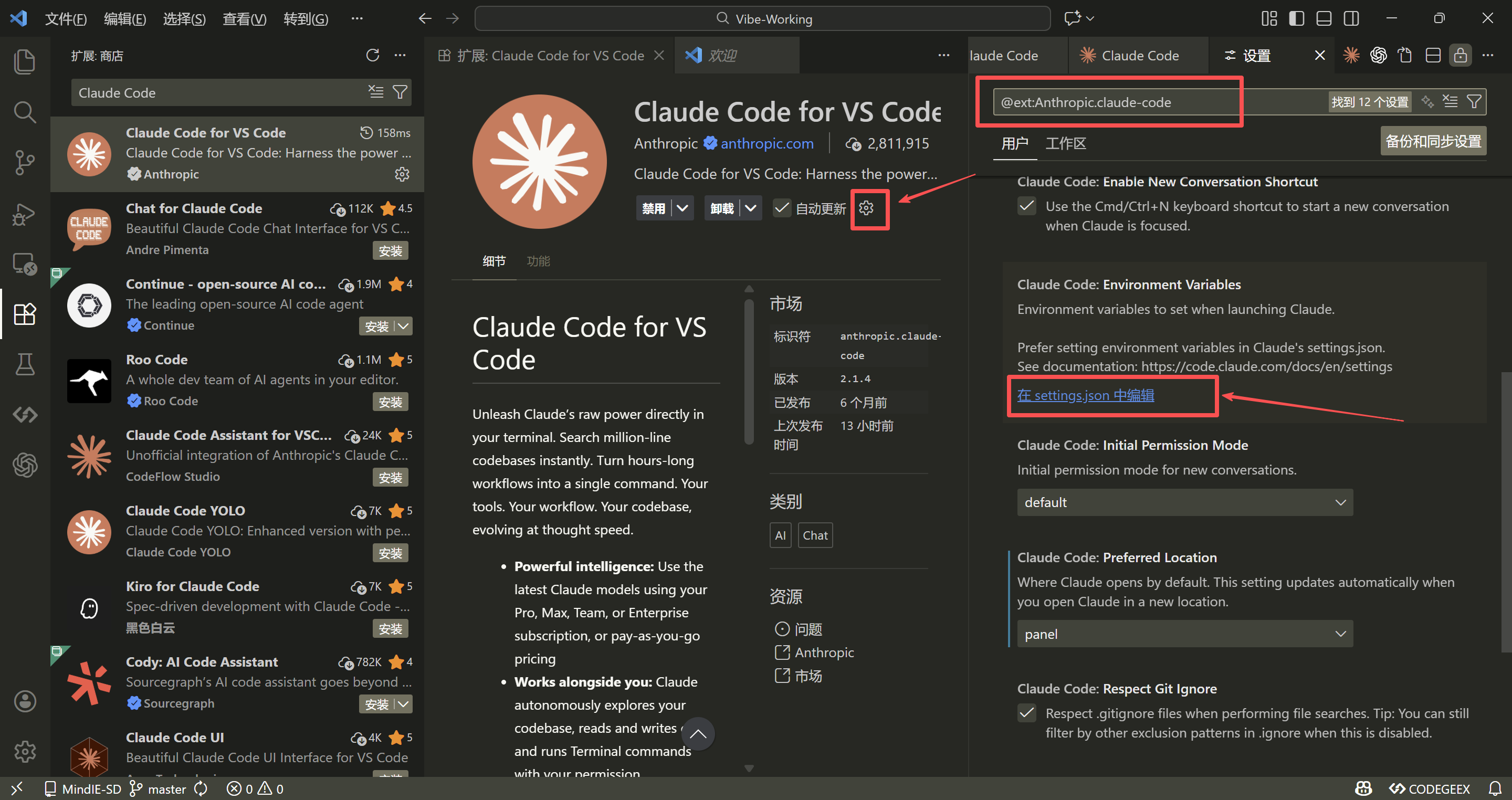
It is recommended to connect to FishXCode via settings.json. Click the gear icon in the bottom-right of the extension → Edit in settings.json:
Add the following to VSCode's settings.json:
{
  "claudeCode.preferredLocation": "panel",
  "claudeCode.environmentVariables": [
    { "name": "ANTHROPIC_AUTH_TOKEN", "value": "replace with your API Key" },
    { "name": "ANTHROPIC_BASE_URL", "value": "https://fishxcode.com/" }
  ]
}
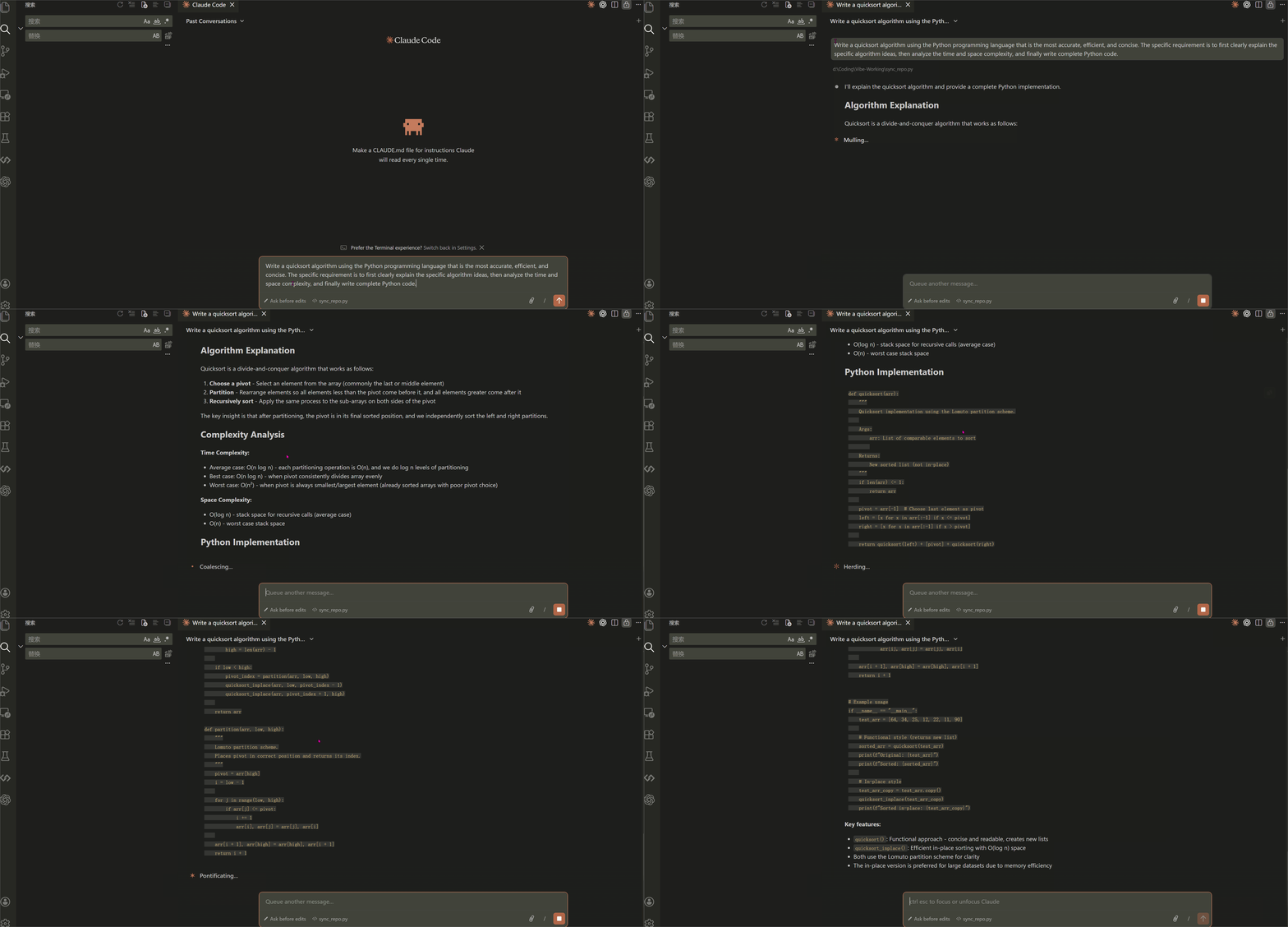
After saving, quit and reopen VSCode — the extension will connect to FishXCode normally.
7. FAQ
403 Error
Token balance is insufficient. Top up in the console and retry.
Windows: Connection Error or 400/401
Re-run the setx commands in PowerShell to write system variables, then reopen the terminal:
setx ANTHROPIC_AUTH_TOKEN "sk-xxx"
setx ANTHROPIC_BASE_URL "https://fishxcode.com/"
"Unable to connect to Anthropic services"
Full error:
Unable to connect to Anthropic services
Failed to connect to api.anthropic.com: ERR_BAD_REQUEST
Please check your internet connection and network settings.
This happens because Claude Code has not completed onboarding and is still trying to connect to api.anthropic.com. No VPN required. Open ~/.claude.json (the .claude.json in your home directory — not .claude/settings.json) and add "hasCompletedOnboarding": true at the end:
{
  "installMethod": "unknown",
  "autoUpdates": true,
  "projects": { ... },
  "hasCompletedOnboarding": true
}
TIP
Make sure to add a comma after the preceding field (required by JSON syntax). Restart claude after saving to connect normally.